> ## Documentation Index
> Fetch the complete documentation index at: https://docs.therootnetwork.com/llms.txt
> Use this file to discover all available pages before exploring further.
# Update Validator Commission
Below are detailed instructions for creating and running a Node.js script to update the validator commission on the Root Network. Below are some important things to keep in mind:
* Commission values are in parts per billion (ppb)
* Example conversions:
* 0.75% = 7,500,000 ppb
* 10% = 100,000,000 ppb
* Double-check your commission values before submitting
* Keep your validator keys secure
## Using Node.js Script
1. Create a new Node.js project and install dependencies:
```
npm install @polkadot/api @polkadot/keyring @polkadot/util @therootnetwork/api
```
2. Create a script file (e.g., `update-commission.js`) with the code below:
```javascript
const { Keyring } = require("@polkadot/keyring");
const { hexToU8a } = require("@polkadot/util");
const { ApiPromise } = require("@polkadot/api");
const { getApiOptions, getPublicProvider } = require("@therootnetwork/api");
async function updateCommission(validatorKey, commissionPPB) {
try {
// Initialize API
const api = await ApiPromise.create({
...getApiOptions(),
...getPublicProvider("root"),
});
// Initialize keyring
const keyring = new Keyring({ type: "ethereum" });
const validator = keyring.addFromSeed(hexToU8a(validatorKey));
// Create commission update call
const call = api.tx.staking.validate({
commission: commissionPPB,
blocked: false
});
const setCommission = api.tx.futurepass.proxyExtrinsic(
"0xfffFfFFf00000000000000000000000000040F95",
call
);
// Send transaction
const txHash = await setCommission.signAndSend(validator);
console.log(`Transaction submitted with hash: ${txHash}`);
// Wait for confirmation
await new Promise(resolve => setTimeout(resolve, 5000));
console.log("Please verify the commission update on the Root Network Portal");
} catch (error) {
console.error("Error updating commission:", error);
}
}
// Example usage (replace with your values)
// updateCommission('YOUR_VALIDATOR_KEY', 7500000); // For 0.75% commission
```
## Using the Root Network Portal
**Option 1 - Update Using Extrinsics**
1. Go to the [Root Network Portal](https://portal.rootnet.live/?rpc=wss%3A%2F%2Froot.rootnet.live%2Fws#/accounts) and sign in with your Metamask wallet. Ensure your accounts and Root Balances are visible under the **Accounts** section. If not, troubleshoot your Metamask connection.
 2. Navigate to the [Extrinsics page](https://portal.rootnet.live/#/extrinsics) and set up the commission update call like so:
* In the first dropdown, select `futurepass`
* Select `proxyExtrinsic(futurepass, call)`
* Under the FuturePass account, verify it shows: `FFFF..0F95`
* For the call selection:
* Select `staking`
* Choose `validate(prefs)`
* Enter your commission value in ppb format (e.g., 7500000 for 0.75%)
* Set `blocked` to "No"
2. Navigate to the [Extrinsics page](https://portal.rootnet.live/#/extrinsics) and set up the commission update call like so:
* In the first dropdown, select `futurepass`
* Select `proxyExtrinsic(futurepass, call)`
* Under the FuturePass account, verify it shows: `FFFF..0F95`
* For the call selection:
* Select `staking`
* Choose `validate(prefs)`
* Enter your commission value in ppb format (e.g., 7500000 for 0.75%)
* Set `blocked` to "No"
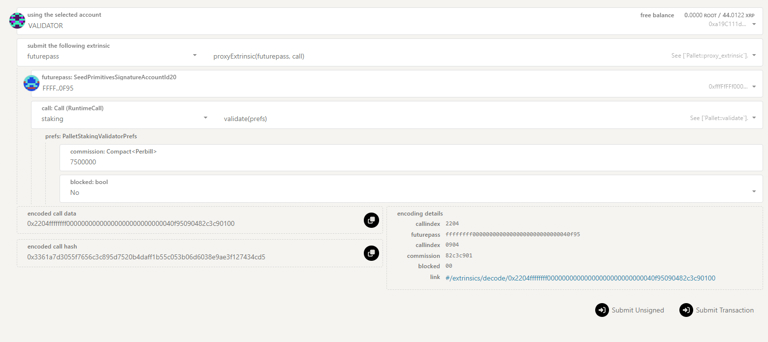 3. Review the encoded call data and hash that appear at the bottom of the form.
4. Click **Submit Transaction** to proceed with the update.
5. Sign the transaction with MetaMask when prompted.
6. Wait for confirmation of the transaction.
**Important Notes**:
* Double-check your commission value is in ppb format before submitting
* Verify all nested selections are correct before proceeding
## Option 2 - Change Validator Preferences
1. Go to the [Portal Extrinsics page](https://portal.rootnet.live/#/extrinsics) and choose **Network** > **Staking** from the drop-down menu.
2. Select the **Accounts** tab.
3. Locate your stash account option and choose **Change validator preferences**.
validator-commission
3. Review the encoded call data and hash that appear at the bottom of the form.
4. Click **Submit Transaction** to proceed with the update.
5. Sign the transaction with MetaMask when prompted.
6. Wait for confirmation of the transaction.
**Important Notes**:
* Double-check your commission value is in ppb format before submitting
* Verify all nested selections are correct before proceeding
## Option 2 - Change Validator Preferences
1. Go to the [Portal Extrinsics page](https://portal.rootnet.live/#/extrinsics) and choose **Network** > **Staking** from the drop-down menu.
2. Select the **Accounts** tab.
3. Locate your stash account option and choose **Change validator preferences**.
validator-commission
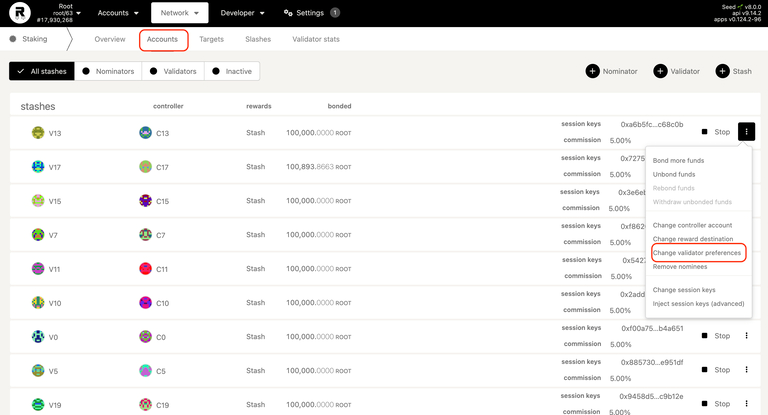 4. On the Set Validator Preferences page, enter your commission value in the **Reward Commission Percentage** field. Example: For 0.75%, enter `0.75`.
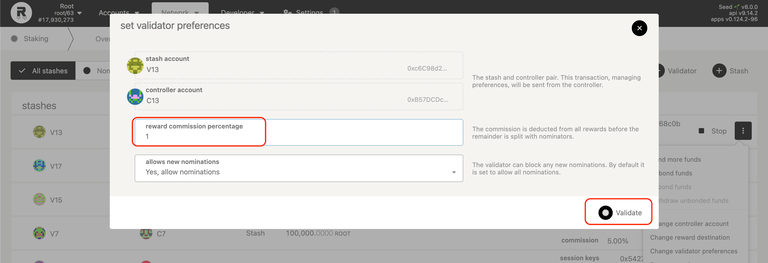 5. Click **Validate** to confirm and submit the request.